> ## Documentation Index
> Fetch the complete documentation index at: https://paylink-c15dc1ba.mintlify.site/llms.txt
> Use this file to discover all available pages before exploring further.
# MCP + Agent (Monetized)
> Add payment requirements to your MCP server using PayLink
This guide shows you how to add PayLink monetization to your MCP server. The server executes tools first, then processes payment based on result evaluation (if enabled) or automatically. This ensures agents only pay for useful results.
Before you begin, make sure you've completed the [Prerequisites](/agent-to-agent/prerequisites) to set up your environment and PayLink account. If you haven't built a basic MCP server yet, start with the [unmonetized version](/agent-to-agent/mcp-agent-unmonetized).
## Overview
When you monetize an MCP server, you configure it to:
1. Execute the tool and return results
2. Evaluate the result quality (if evaluation is enabled)
3. Process payment based on evaluation outcome or automatically
4. Return both the tool result and payment confirmation
The payment flow ensures agents only pay for useful results when evaluation is enabled, protecting them from paying for invalid or unhelpful tool outputs.
## Adding Payment with PayLink
Let's add PayLink monetization to your existing MCP server. We'll build on top of the [unmonetized MCP server](/agent-to-agent/mcp-agent-unmonetized) structure.
Add the PayLink monetization imports to your existing imports section:
```python lines theme={null}
from paylink.mcp.monetize_mcp import require_payment
from paylink.mcp.wallet_context import set_agent_wallet_from_scope, reset_agent_wallet
```
These imports provide:
* `require_payment`: Decorator that handles payment verification before tool execution
* `set_agent_wallet_from_scope` and `reset_agent_wallet`: Functions to manage wallet context from request scope
Add the `@require_payment` decorator to your `call_tool` function. The decorator takes a dictionary mapping tool names to their pricing configuration:
```python lines theme={null}
@app.call_tool()
@require_payment( # [!code ++]
{ # [!code ++]
"add": { # [!code ++]
"base_cost": 0.10, # [!code ++]
"require_evaluation": True, # [!code ++]
}, # [!code ++]
"subtract": { # [!code ++]
"base_cost": 0.10, # [!code ++]
"require_evaluation": True, # [!code ++]
}, # [!code ++]
} # [!code ++]
) # [!code ++]
async def call_tool(tool_name: str, arguments: dict[str, Any]) -> list[TextContent]:
if tool_name == "add":
result = arguments["a"] + arguments["b"]
return [types.TextContent(type="text", text=str(result))]
elif tool_name == "subtract":
result = arguments["a"] - arguments["b"]
return [types.TextContent(type="text", text=str(result))]
else:
return [
types.TextContent(
type="text", text=f"Error: Unknown tool '{tool_name}'"
)
]
```
**Payment Flow**: The payment process works as follows:
1. The MCP server executes the tool and returns the results
2. **If evaluation is enabled** (`require_evaluation: True`): The response is evaluated, and payment is only processed if the evaluation passes (i.e., the result is helpful to the agent)
3. **If evaluation is not enabled** (`require_evaluation: False`): Payment happens automatically after tool execution
The `require_evaluation: True` setting is important because some tools may return invalid or unhelpful results. PayLink's result evaluation ensures payment is only processed when the tool result is actually useful to the agent. This also enables dynamic pricing in the future, where pricing can be adjusted based on the quality or usefulness of the result.
The `@require_payment` decorator automatically:
* Extracts the agent's wallet connection string from request headers
* Executes the tool and collects the result
* Evaluates the result quality when `require_evaluation` is enabled
* Processes payment based on the evaluation result (if enabled) or automatically (if disabled)
Update your ASGI handler to extract and manage wallet context from the request:
```python lines theme={null}
async def handle_streamable_http(
scope: Scope, receive: Receive, send: Send
) -> None:
# Extract wallet connection string from request headers and set it in context # [!code ++]
token = set_agent_wallet_from_scope(scope) # [!code ++]
try:
await session_manager.handle_request(scope, receive, send)
except Exception:
logger.exception("Streamable HTTP error")
finally:
# Clean up wallet context after request # [!code ++]
reset_agent_wallet(token) # [!code ++]
```
The `set_agent_wallet_from_scope` function reads the agent's wallet connection string from request headers (typically `wallet-connection-string`) and makes it available to the `@require_payment` decorator. The context is cleaned up in the `finally` block to prevent memory leaks.
Save your code to a file (e.g., `main.py`) and run it:
```bash uv theme={null}
uv run main.py
```
```bash python theme={null}
python main.py
```
You can also specify custom options:
```bash theme={null}
uv run main.py --port 5003 --log-level INFO
```
When the server starts successfully, you'll see output like:
```
INFO: Started server process [10785]
INFO: Waiting for application startup.
2025-11-30 16:37:34,757 - mcp.server.streamable_http_manager - INFO - StreamableHTTP session manager started
INFO: Application startup complete.
INFO: Uvicorn running on http://0.0.0.0:5003 (Press CTRL+C to quit)
```
Your monetized MCP server is now running and ready to accept tool calls with payment at `http://0.0.0.0:5003/mcp`.
## Complete Example
Here's the complete example of a monetized MCP server:
```python lines expandable theme={null}
import contextlib
import logging
from collections.abc import AsyncIterator
from typing import Any
import click
import uvicorn
from dotenv import load_dotenv
from starlette.applications import Starlette
from starlette.routing import Mount
from starlette.types import Receive, Scope, Send
from mcp.server.lowlevel import Server
from mcp.server.streamable_http_manager import StreamableHTTPSessionManager
from mcp.types import TextContent
import mcp.types as types
from paylink.mcp.monetize_mcp import require_payment # [!code ++]
from paylink.mcp.wallet_context import set_agent_wallet_from_scope, reset_agent_wallet # [!code ++]
load_dotenv()
logger = logging.getLogger(__name__)
@click.command()
@click.option("--port", default=5003, help="Port to listen on for HTTP")
@click.option(
"--log-level",
default="INFO",
help="Logging level (DEBUG, INFO, WARNING, ERROR, CRITICAL)",
)
@click.option(
"--json-response",
is_flag=True,
default=False,
help="Enable JSON responses for StreamableHTTP",
)
def main(
port: int | None = None,
log_level: str | None = None,
json_response: bool | None = None,
) -> None:
logging.basicConfig(
level=getattr(logging, log_level.upper()),
format="%(asctime)s - %(name)s - %(levelname)s - %(message)s",
)
app = Server("example-mcp-server")
@app.list_tools()
async def list_tools() -> list[types.Tool]:
return [
types.Tool(
name="add",
description="Add two integers",
inputSchema={
"type": "object",
"properties": {
"a": {"type": "number"},
"b": {"type": "number"},
},
"required": ["a", "b"],
},
),
types.Tool(
name="subtract",
description="Subtract two integers",
inputSchema={
"type": "object",
"properties": {
"a": {"type": "number"},
"b": {"type": "number"},
},
"required": ["a", "b"],
},
),
]
@app.call_tool()
@require_payment( # [!code ++]
{ # [!code ++]
"add": { # [!code ++]
"base_cost": 0.10, # [!code ++]
"require_evaluation": True, # [!code ++]
}, # [!code ++]
"subtract": { # [!code ++]
"base_cost": 0.10, # [!code ++]
"require_evaluation": True, # [!code ++]
}, # [!code ++]
} # [!code ++]
) # [!code ++]
async def call_tool(tool_name: str, arguments: dict[str, Any]) -> list[TextContent]:
if tool_name == "add":
result = arguments["a"] + arguments["b"]
return [types.TextContent(type="text", text=str(result))]
elif tool_name == "subtract":
result = arguments["a"] - arguments["b"]
return [types.TextContent(type="text", text=str(result))]
else:
return [
types.TextContent(
type="text", text=f"Error: Unknown tool '{tool_name}'"
)
]
session_manager = StreamableHTTPSessionManager(
app=app,
event_store=None,
json_response=json_response,
stateless=True,
)
async def handle_streamable_http(
scope: Scope, receive: Receive, send: Send
) -> None:
# sets wallet into request context variable # [!code ++]
token = set_agent_wallet_from_scope(scope) # [!code ++]
try:
await session_manager.handle_request(scope, receive, send)
except Exception:
logger.exception("Streamable HTTP error")
finally:
reset_agent_wallet(token) # [!code ++]
@contextlib.asynccontextmanager
async def lifespan(starlette_app: Starlette) -> AsyncIterator[None]:
async with session_manager.run():
yield
routes = [
Mount("/mcp", app=handle_streamable_http),
]
starlette_app = Starlette(debug=True, lifespan=lifespan, routes=routes)
uvicorn.run(starlette_app, host="0.0.0.0", port=port, log_level=log_level.lower())
if __name__ == "__main__":
main()
```
## Connecting an Agent to Your Monetized MCP Server
Now that your monetized MCP server is running, you can connect an agent to use its tools. The agent code is the same as connecting to an unmonetized server, but you need to ensure the agent has access to its wallet connection string.
In your agent project, ensure your `.env` file includes the wallet connection string from your AGENT project:
```bash theme={null}
WALLET_CONNECTION_STRING="your_agent_connection_string"
```
This wallet connection string is used by PayLinkTools to automatically handle payments when calling monetized tools. The agent's wallet will be debited when tools are executed.
Use PayLink's LangChain integration to connect to your monetized MCP server:
```python lines theme={null}
from langchain.agents import create_agent
from langchain.chat_models import init_chat_model
from paylink.integrations.langchain_tools import PayLinkTools
# Initialize the language model
llm = init_chat_model(model="gpt-4o-mini")
# Connect to your monetized MCP server
client = PayLinkTools(base_url="http://0.0.0.0:5003/mcp")
# Get the tools from the MCP server
tools = client.list_tools()
# Create the agent with the MCP tools
agent = create_agent(
model=llm,
tools=tools
)
```
The `PayLinkTools` class automatically:
* Connects to your MCP server at the specified URL
* Discovers available monetized tools
* Handles payment processing using the wallet connection string from your `.env` file
* Makes tools available to your LangChain agent
You can now use the agent to interact with your monetized MCP server tools:
```python lines theme={null}
# Invoke the agent with a query
response = agent.invoke("What is 5 + 3?")
print(response)
```
The agent will automatically:
* Use the `add` tool from your MCP server
* Handle payment processing (payment is processed after tool execution, and only if evaluation passes when enabled)
* Return the result to the agent
## Complete Agent Example
Here's a complete example of a LangChain agent using your monetized MCP server:
```python lines expandable theme={null}
from langchain.agents import create_agent
from langchain.chat_models import init_chat_model
from paylink.integrations.langchain_tools import PayLinkTools
# Initialize the language model
llm = init_chat_model(model="gpt-4o-mini")
# Connect to your monetized MCP server
client = PayLinkTools(base_url="http://0.0.0.0:5003/mcp")
# Get the tools from the MCP server
tools = client.list_tools()
# Create the agent with the MCP tools
agent = create_agent(
model=llm,
tools=tools
)
# Use the agent
response = agent.invoke("What is 10 + 5?")
print(response)
```
Make sure your agent's `.env` file contains `WALLET_CONNECTION_STRING="your_agent_connection_string"` before running the agent. This is required for PayLinkTools to handle payments when calling monetized tools.
## Full Working Example
For a complete, working example of a monetized MCP server and agent, see the [how\_to\_monetize\_mcp\_server](https://github.com/paylinkmcp/how_to_monetize_mcp_server) repository on GitHub.
## Viewing Wallet Transactions
After your agent calls monetized tools, you can view the payment transactions in both wallets:
### MCP Wallet (Receiving Payments)
Navigate to your MCP project's wallet in the PayLink dashboard to see incoming payments from agents:
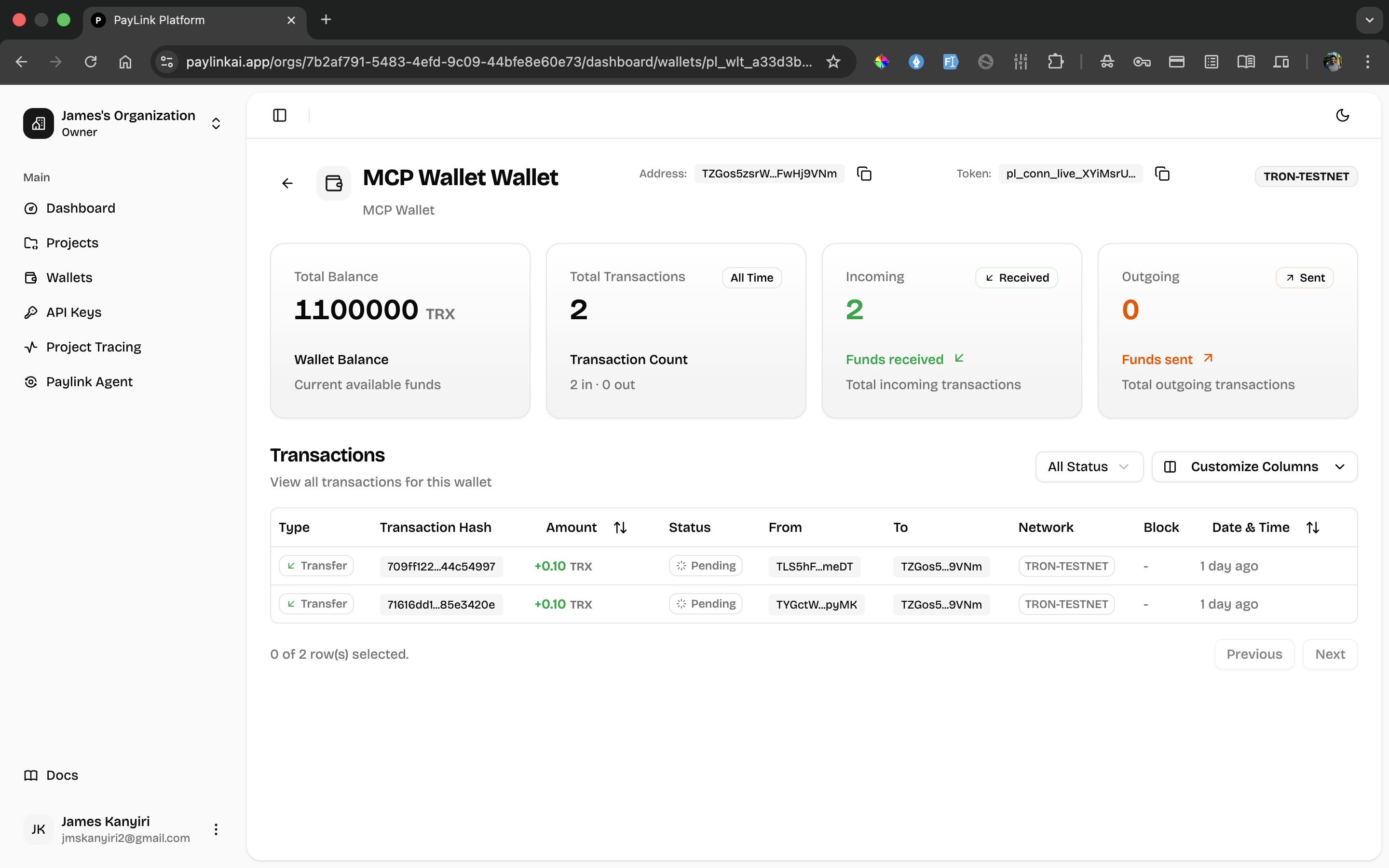 The MCP wallet shows:
* **Total Balance**: Accumulated payments from all agent transactions
* **Incoming Transactions**: Each payment received when agents call your monetized tools
* **Transaction Details**: Amount, status, and source wallet for each payment
### Agent Wallet (Sending Payments)
Navigate to your agent project's wallet in the PayLink dashboard to see outgoing payments to MCP servers:
The MCP wallet shows:
* **Total Balance**: Accumulated payments from all agent transactions
* **Incoming Transactions**: Each payment received when agents call your monetized tools
* **Transaction Details**: Amount, status, and source wallet for each payment
### Agent Wallet (Sending Payments)
Navigate to your agent project's wallet in the PayLink dashboard to see outgoing payments to MCP servers:
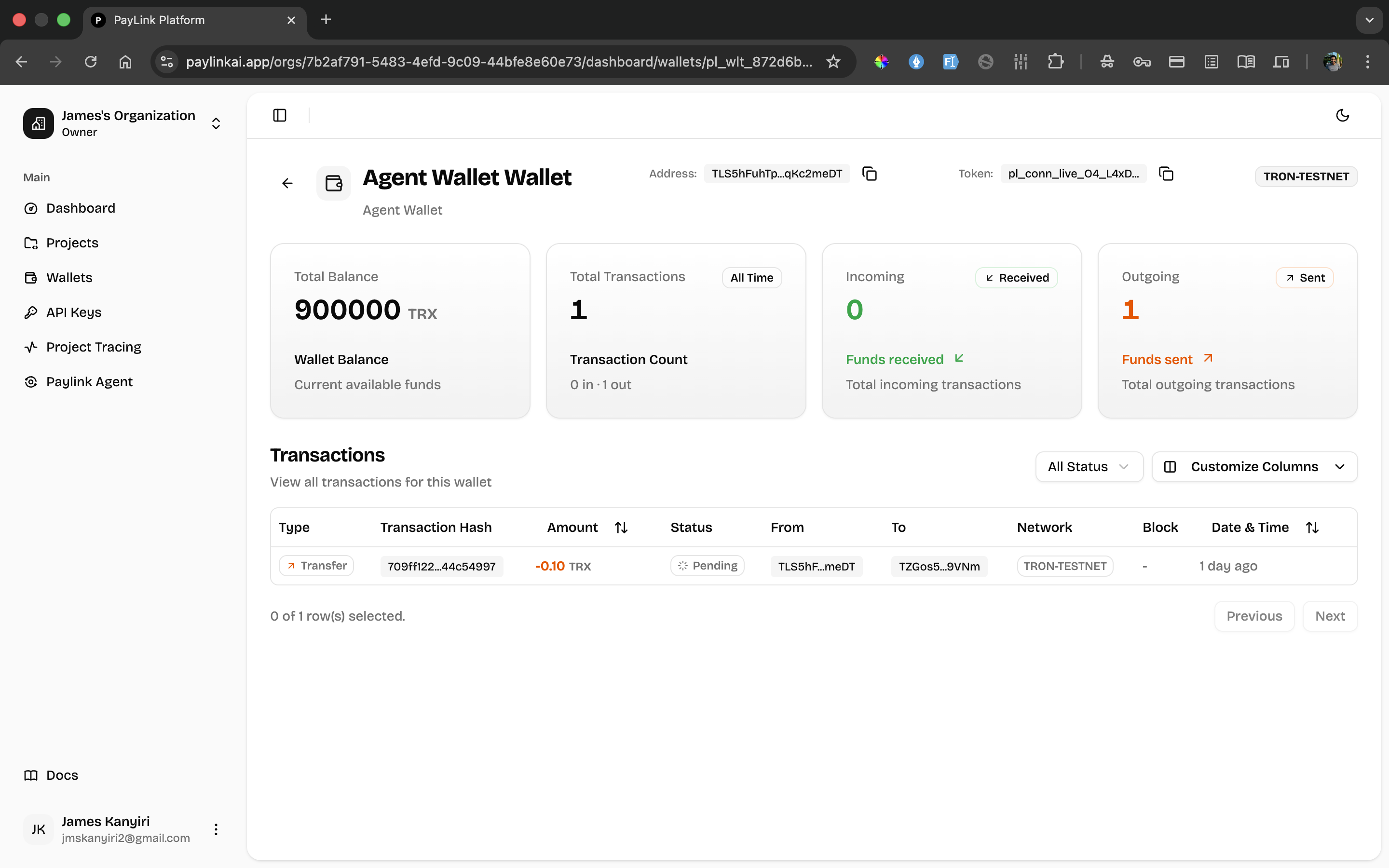 The agent wallet shows:
* **Total Balance**: Remaining funds available for tool calls
* **Outgoing Transactions**: Each payment made when calling monetized tools
* **Transaction Details**: Amount, status, and destination wallet for each payment
## What you achieved
* You configured your MCP server to require payment before tool execution
* You integrated PayLink wallet verification into your tool handlers
* You connected an agent to your monetized MCP server
* Your agent can now call monetized tools and payments are handled automatically
* Your tools now accept payments from agents using PayLink wallets
* You can track payments received in your PayLink dashboard
## Next steps
Once your MCP server is monetized and your agent is connected, you can:
* Monitor payments in your PayLink dashboard
* Adjust pricing and evaluation settings for your tools
* Scale your monetized MCP server to serve multiple agents
The agent wallet shows:
* **Total Balance**: Remaining funds available for tool calls
* **Outgoing Transactions**: Each payment made when calling monetized tools
* **Transaction Details**: Amount, status, and destination wallet for each payment
## What you achieved
* You configured your MCP server to require payment before tool execution
* You integrated PayLink wallet verification into your tool handlers
* You connected an agent to your monetized MCP server
* Your agent can now call monetized tools and payments are handled automatically
* Your tools now accept payments from agents using PayLink wallets
* You can track payments received in your PayLink dashboard
## Next steps
Once your MCP server is monetized and your agent is connected, you can:
* Monitor payments in your PayLink dashboard
* Adjust pricing and evaluation settings for your tools
* Scale your monetized MCP server to serve multiple agents